Team planning by contribution
See where your team’s work is stuck, and who can move it.
Leader Genius is a workspace for teams that organizes every project by the kind of contribution it needs next. Owners, status, due dates and tasks sit on every card, so stalled work shows up before it turns into late work.
Runs in the browser on desktop, tablet and phone.
The problem
Good teams still get stuck. Usually for the same reasons.
Projects rarely stall because people stop trying. They stall because a step the work needs has no natural owner, and nobody can see it until a deadline slips.
01
Work stops at a step nobody owns
Every project needs questioning, ideas, judgement, rallying, support and follow-through. When nobody on the team is drawn to one of those steps, the work quietly stops there.
02
Status lives in people’s heads
Updates are scattered across chats, inboxes and meetings. Leaders learn that something is blocked when it is already late.
03
People get the wrong kind of work
Ask an idea person to chase deadlines, or a finisher to brainstorm, and both are drained. The work suffers and so does the team.
04
Friction turns into blame
Without shared language, a stalled project looks like someone not pulling their weight. The conversation gets personal instead of practical.
The solution
Leader Genius makes the work itself visible.
It puts the kind of contribution on the board your team plans with. Everyone can see what each project needs next, who owns it and what is at risk.
Step 1
Name the work
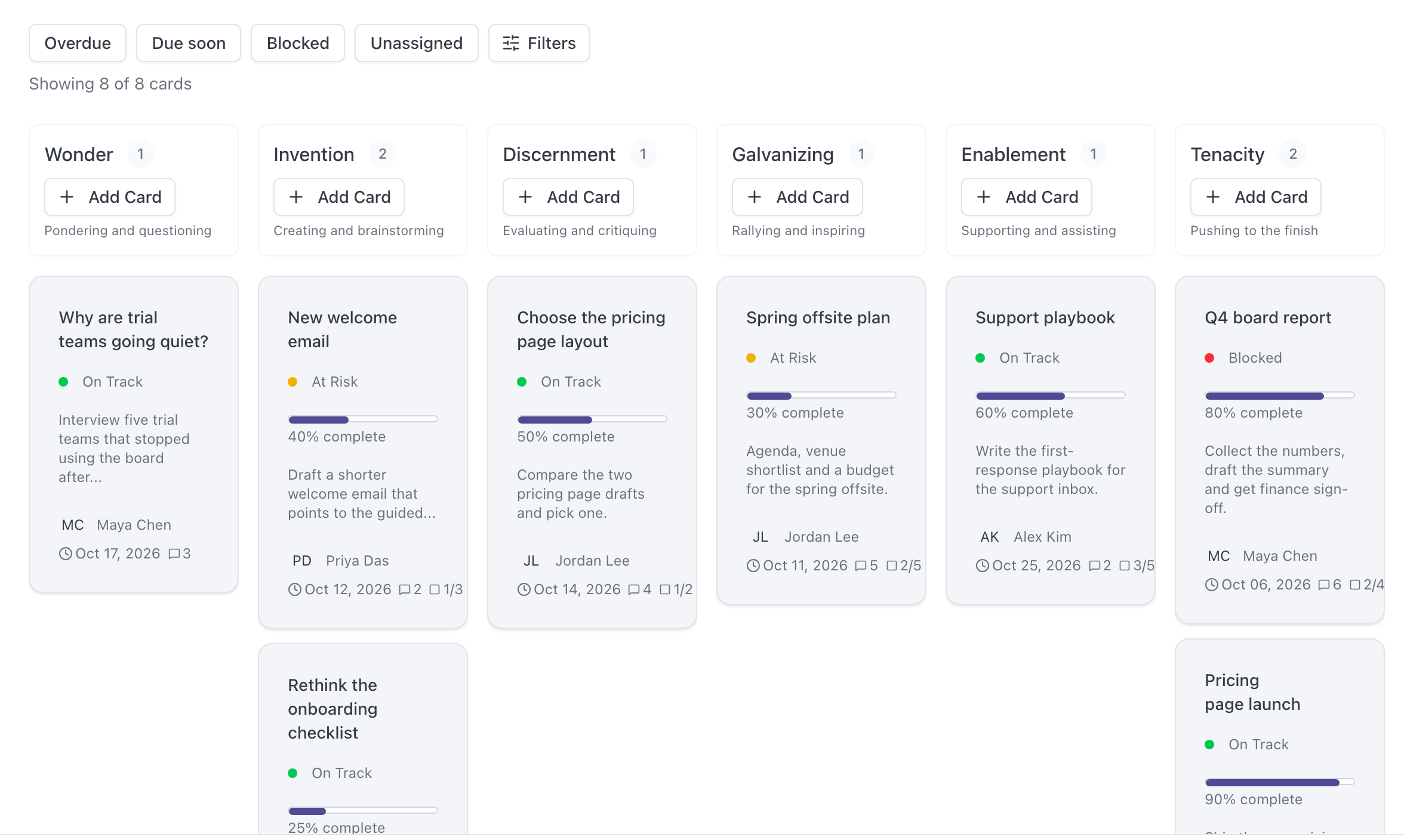
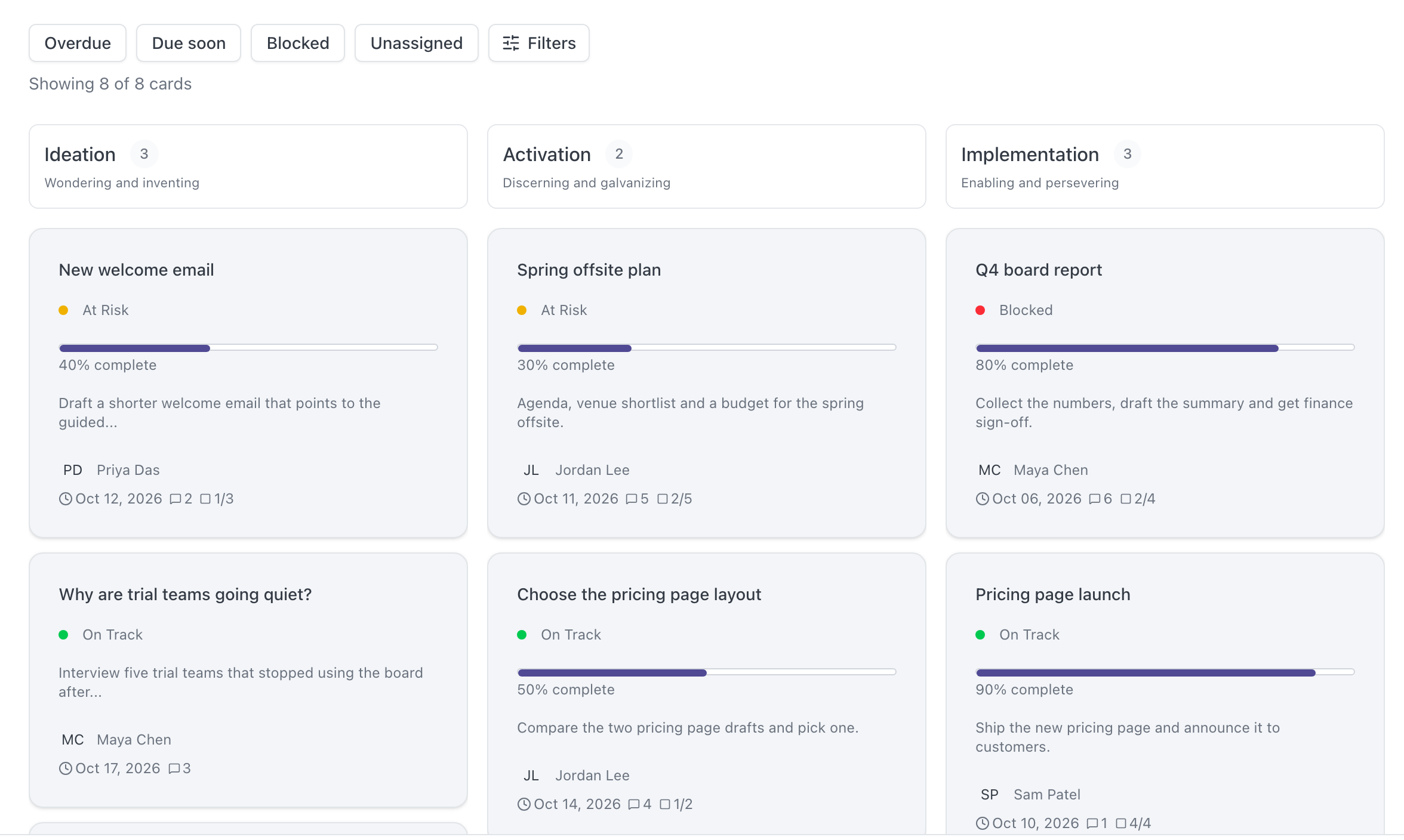
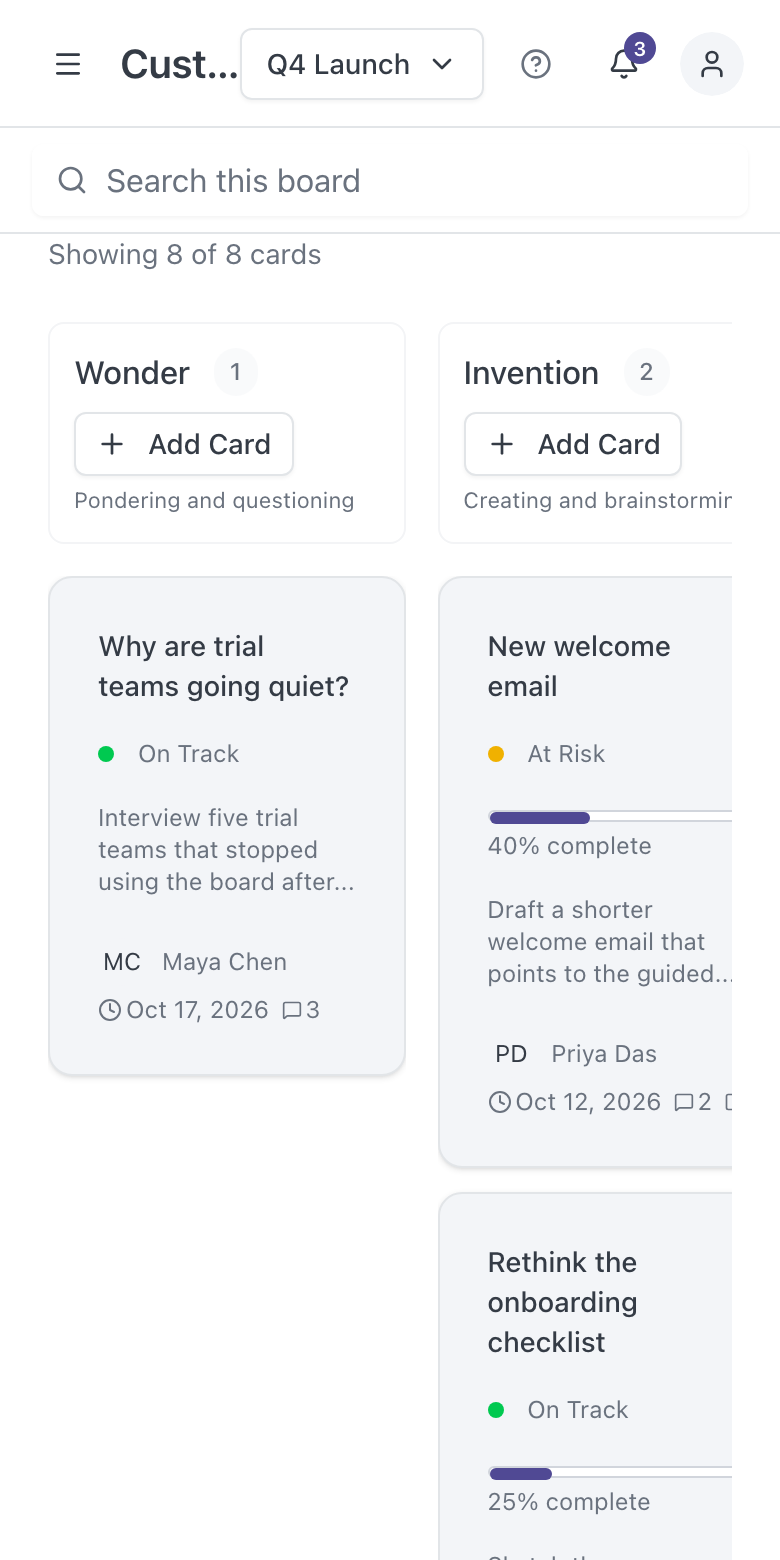
Six columns, one for each kind of contribution. Move a project as its needs change, or switch to the Stage view to see Ideation, Activation and Implementation at a glance.
Step 2
Make ownership explicit
Every card carries owners, status, priority, a due date, tasks and progress. Nobody has to ask who has it.
Step 3
Keep it moving
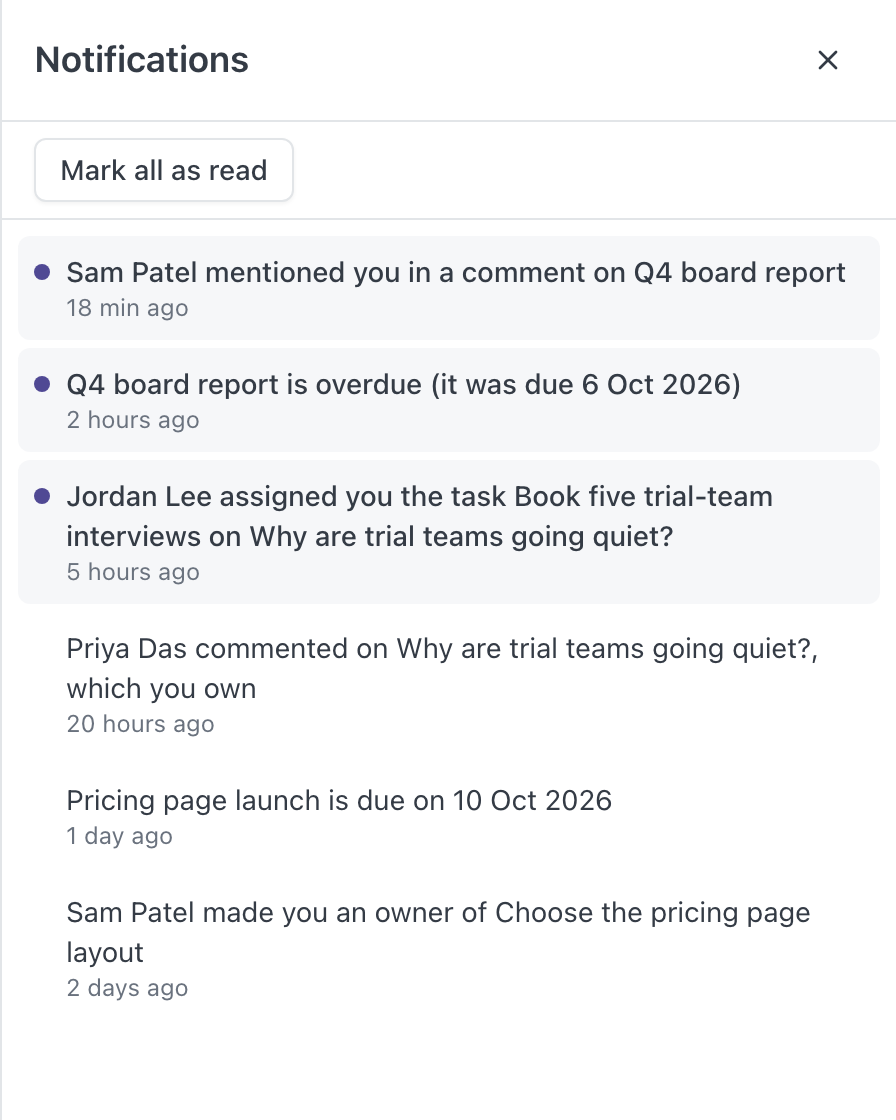
My Work shows each person what is overdue, due soon or blocked. Notifications flag mentions, assignments, new comments and approaching due dates.
The idea behind it
Every project needs six kinds of contribution.
Work moves from an idea to a finished result through six kinds of contribution. Every project needs all six, though rarely at the same time, and each person is naturally energized by some more than others. Leader Genius gives each one a column.
01 · Pondering and questioning
Wonder
Asking why something matters and whether there is a better way, before anyone commits to an answer.
02 · Creating and brainstorming
Invention
Turning an open question into options worth trying: approaches, sketches and proposals.
03 · Evaluating and critiquing
Discernment
Weighing ideas against evidence and judgement so the team can sharpen a plan or decide what to drop.
04 · Rallying and inspiring
Galvanizing
Winning support and getting people moving once a direction is worth backing.
05 · Supporting and assisting
Enablement
Giving others the help they need to make progress, wherever a teammate is stretched.
06 · Pushing to the finish
Tenacity
Closing loose ends, meeting deadlines and confirming the result is delivered.
Want the bigger picture? The Stage view groups the six columns into three stages of work.
Leader Genius is inspired by the six types of working genius described by Patrick Lencioni and The Table Group. It is an independent product and is not affiliated with or endorsed by them.
Features
Built for the way teams actually get work done.
Boards
A board that shows what the work needs, not just where it is.
Each board lays out a team’s projects in six columns, by the kind of contribution they need next. Gaps and crowding are obvious at a glance.
- Drag a project to a new column as its needs change.
- Put cards in order; the order is saved.
- Switch to the Stage view: Ideation, Activation, Implementation.
- Run several boards per team and link a project to more than one.
Projects
Everything about a project, on one card.
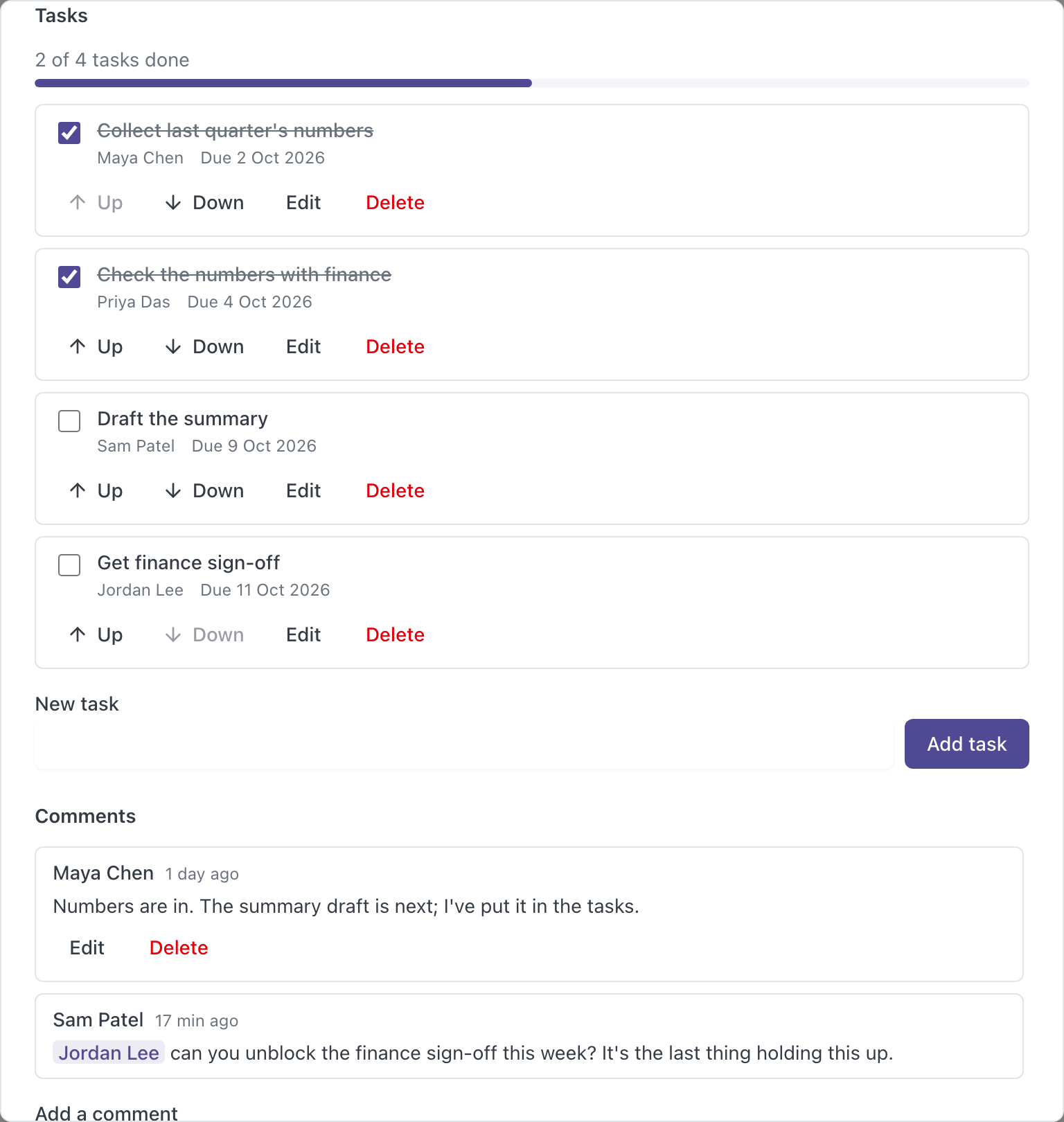
Open any card for the full picture: who owns it, how it is going, what is left to do and what the team has said about it.
- Status (On Track, At Risk, Blocked), priority, owners and a due date.
- Tasks with their own owners and due dates, and a progress bar.
- Comments with @mentions, right where the work is.
- An activity history of who changed what, and a shareable link.
My Work
Each person’s work, sorted by what needs attention.
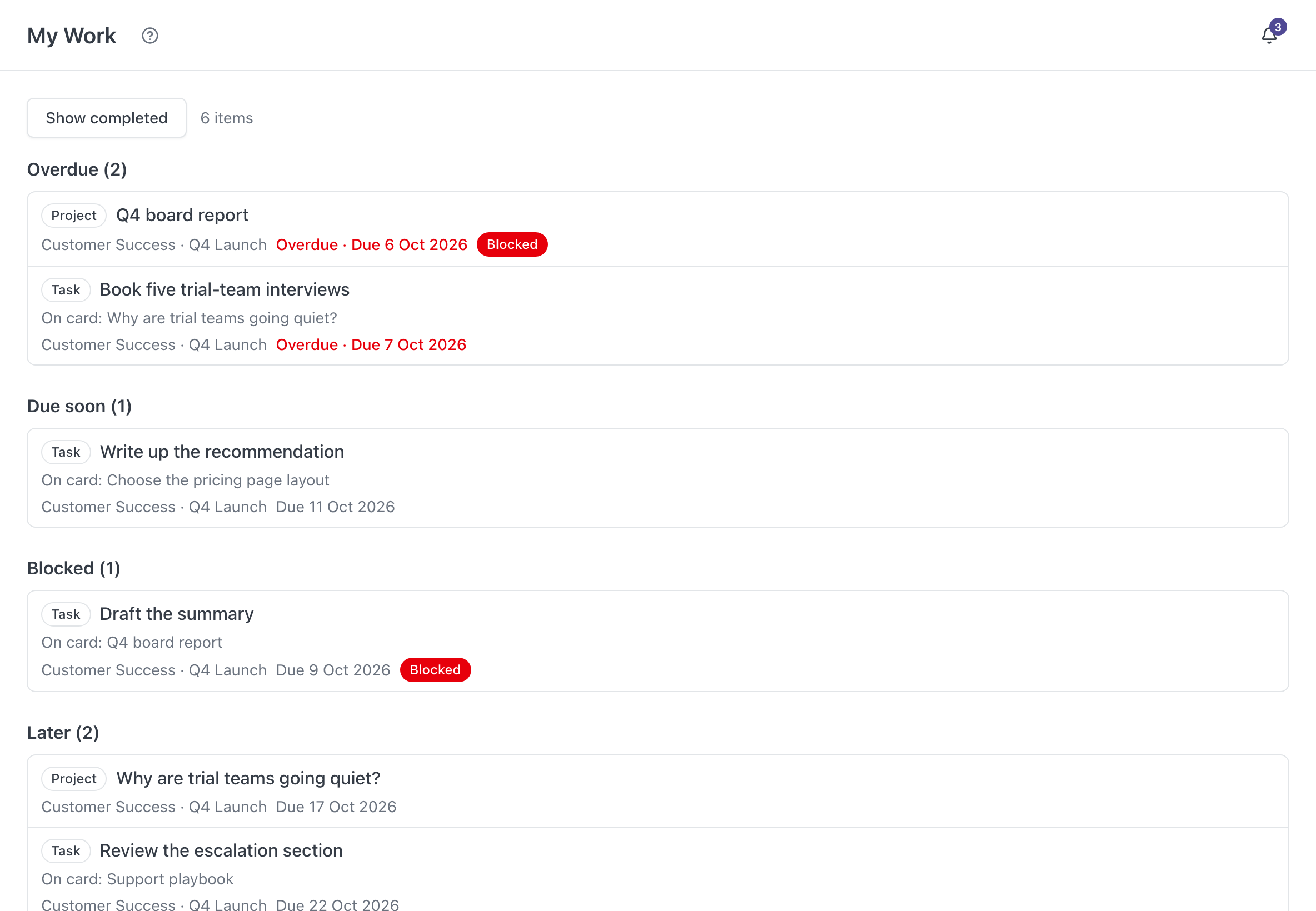
One page shows the projects and tasks assigned to you across your boards, grouped so the urgent things come first.
- Grouped into Overdue, Due soon, Blocked and Later.
- Every item links straight to its card.
- Completed and archived work stays out of the way.
Search and filters
Search titles and descriptions, then filter by owner, status, priority and due date, or narrow to overdue, blocked or unassigned work.
Notifications
Hear about @mentions, new assignments, comments on cards you own and due dates that are near or past, with an unread count.
Teams, roles and invitations
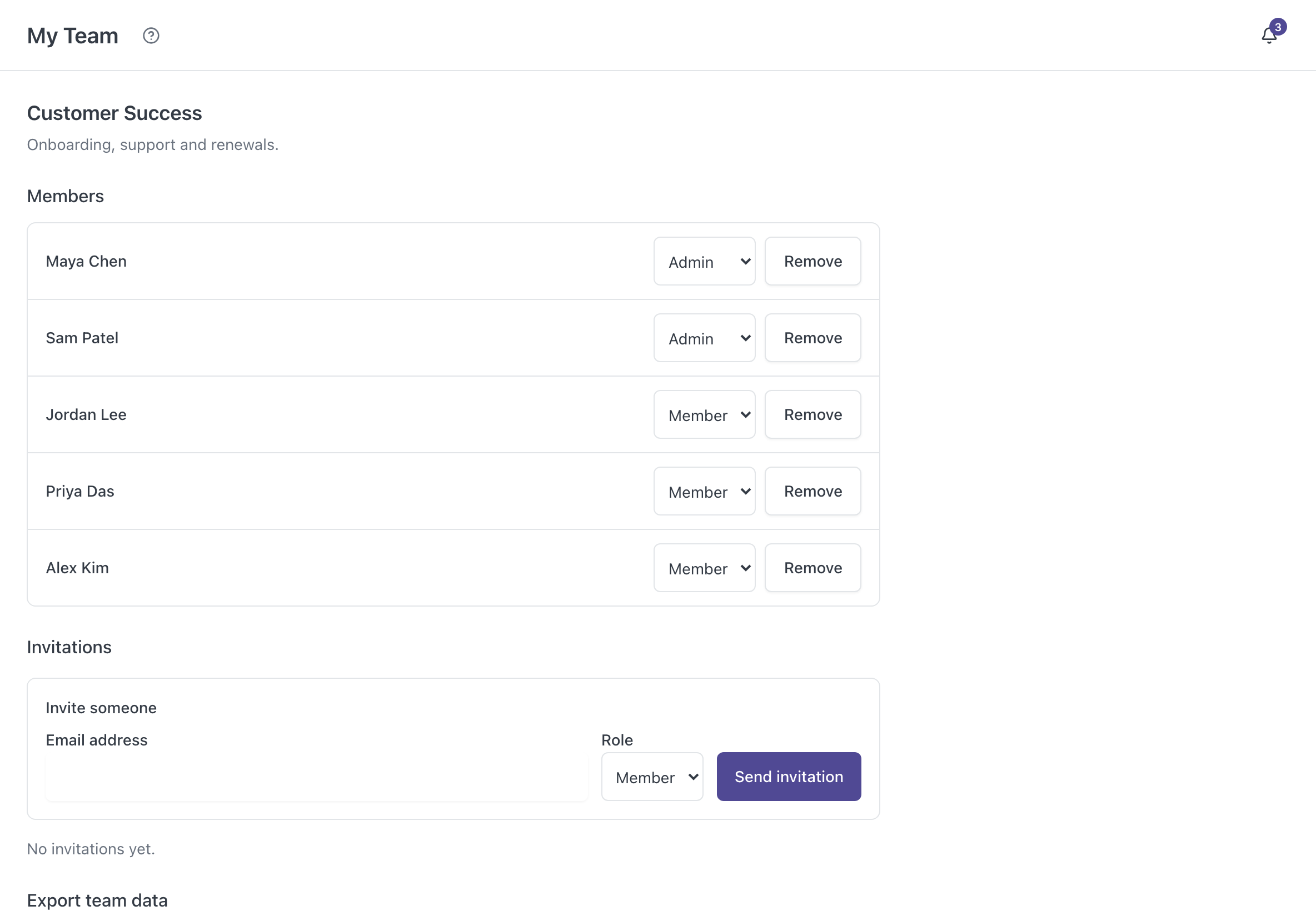
Invite colleagues by email as Admins or Members. Resend or revoke invitations, and belong to more than one team.
Drafts, archive and Trash
Save a card as a draft and publish it when ready. Archive and restore. Deleted cards wait in Trash until someone recovers them.
Saves you can trust
Clear saving and saved states, safe retries when a connection drops, and unsaved text kept if a save fails.
Your data, exportable
Export a team’s data as CSV or JSON whenever you need it.
How it works
From sign-up to a working board, step by step.
Leader Genius walks new teams through their first project, so nobody is left staring at an empty screen.
- 1
Create a team
Name your team and invite colleagues by email. Choose who is an Admin and who is a Member.
- 2
Create a board
Set up a board for an initiative or a stream of work. Start with a sample project if you want to see one first.
- 3
Add your first card
Put a project in the column for the contribution it needs next, give it owners and a due date, and break it into tasks.
- 4
Keep it moving
Move cards as the work changes. My Work, filters and notifications keep everyone on what matters now.
What changes
Less chasing. Fewer surprises. More of the right work.
Stuck work surfaces early
Blocked and At Risk status, overdue filters and due-date notifications put problems in front of you while there is still time to act.
Conversations get practical
“This needs Discernment” is easier to act on than “why isn’t this done?” Shared language takes the blame out of the room.
The right people pick up the right work
When the kind of work is visible, it is easier to match it with teammates who are energized by it.
Nothing important gets lost
Drafts, archive, recoverable Trash and an activity history on every card keep the record straight.
Questions
Questions teams ask before they start
Is Leader Genius a personality test?
No. Leader Genius does not score or label people. It is a workspace for planning and tracking a team’s projects, organized by the kind of contribution the work needs.
Does my team need to learn the six kinds of contribution first?
No. Each column carries a short description, and the built-in Guide explains all six and how teams, boards, projects and tasks fit together. A guided first project and an optional sample project help you get going.
How is this different from an ordinary task board?
Most boards show where work sits in a process. Leader Genius shows what kind of contribution each project needs next, so you can see which steps your team is missing and who is best placed to help. You still get owners, due dates, tasks, comments, filters and notifications.
Who can see our boards?
Boards and projects belong to a team, and people join a team by invitation. Admins manage invitations and can remove members.
What if someone deletes something by mistake?
Deleted cards go to Trash, where any team member can recover them. Nothing is removed automatically. Cards can also be archived and restored later.
Can we get our data out?
Yes. Any team member can export the team’s data as CSV or JSON.
Does it work on phones?
Yes. Leader Genius runs in the browser and works on phones and tablets as well as desktop.
How much does it cost?
Pricing is still being finalized. Email us and we will help you get your team started.

Get started
Give your team a clearer way to work.
Create your account, set up a team and put your first project on a board. The guided first project shows you the way.